
Xero Integration
1. Getting Started
Connect your account to Xero in just a few simple steps.
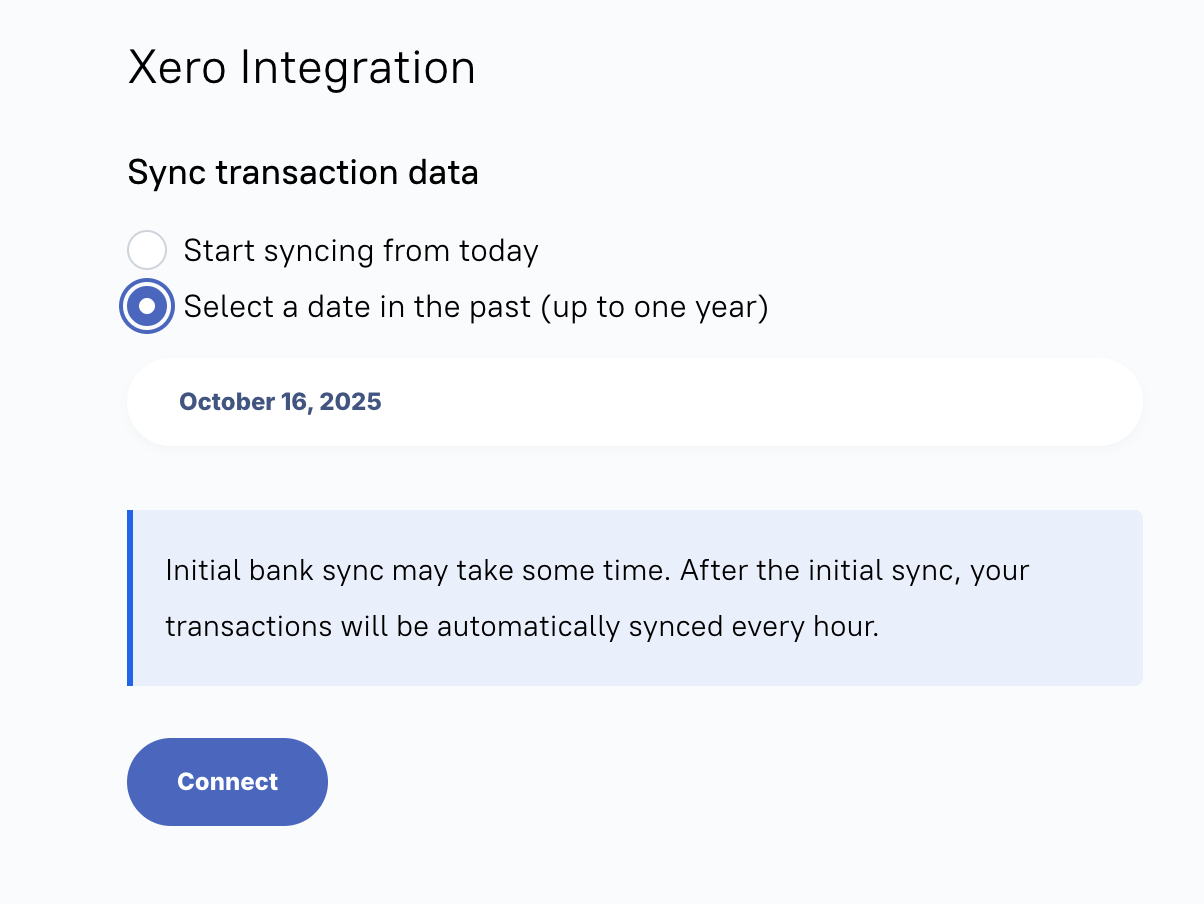
Step 1: Connect to Xero
Go to the Xero section in your dashboard
Choose a start date (optional) - Pick the date you want to start syncing transactions from. If you don't select a date, we'll start syncing from today
Click Connect
Step 2: Authorize Access
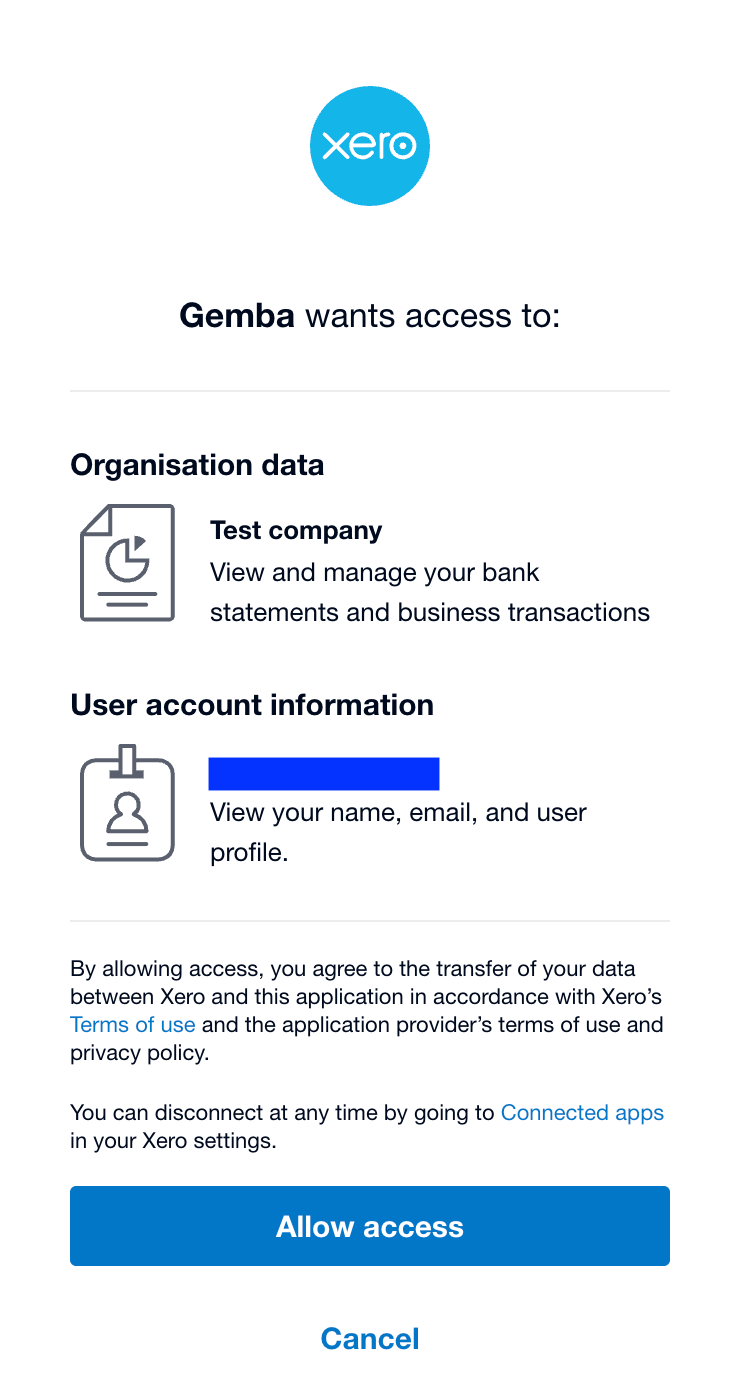
You'll be redirected to Xero's login page
Log in with your Xero credentials
Review the permissions and click Allow access
You'll be automatically redirected back
Step 3: Set Up Your Accounts
After connecting, configure which accounts to use:
Select your default accounts for the integration
Click Save
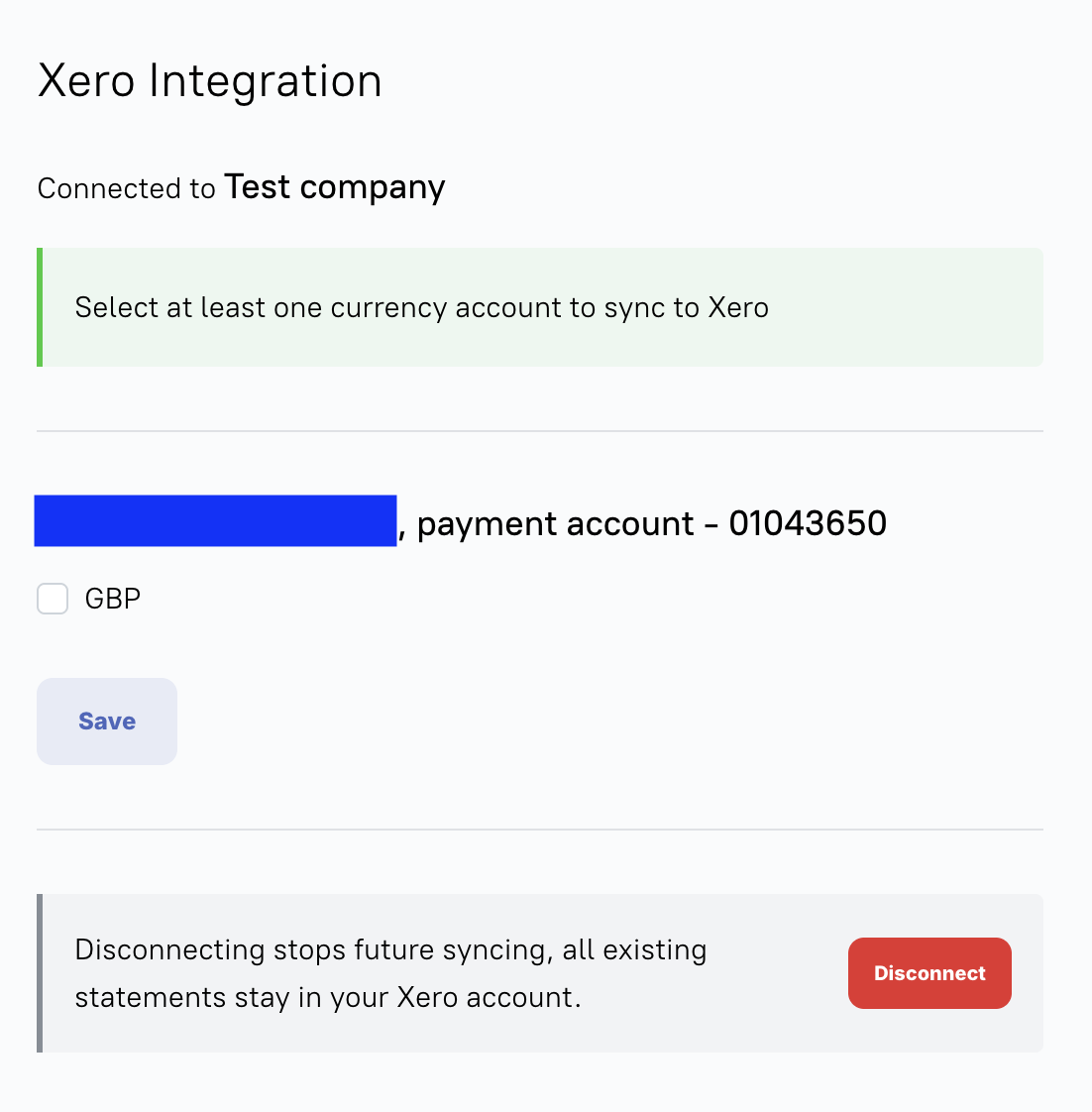
Important: Gemba accounts support multiple currencies, and a separate bank feed is created for each currency. However, if your Xero account is on a Starter or Standard plan, you can only sync one currency (your base currency). Even if you select multiple currencies, only the base currency will be saved. To sync multiple currencies, you'll need to upgrade to a Xero Premium plan.
That's it! Your transactions will now sync automatically.
2. How It Works
What Gets Synced
Your bank transactions automatically flow from Gemba to Xero as bank statement lines. This means:
All your transaction details (amount, date, description)
Payee and reference information
Account balances
Once in Xero, you can reconcile these transactions just like any other bank statement.
When Syncing Happens
Automatic Sync:
Runs every hour in the background
No action needed from you
Manual Sync:
Click Sync Now anytime to sync immediately
Useful when you need transactions in Xero right away
Date Range for Syncing
First time connecting:
If you selected a start date, we sync from that date to today
If you didn't select a date, we sync from today
After the first sync:
We automatically sync from your last sync date to today
This ensures you never miss any transactions
3. Settings
Changing Your Start Date
Want to sync transactions from a different date?
Go to the Xero section
Disconnect current integration
Select a new date using the date picker
Click Connect
Click Sync Now
We'll sync all transactions from your selected date forward.
Sync Frequency
Your transactions sync automatically every hour. If you need them sooner, just click Sync Now.
Disconnecting
To stop syncing with Xero:
Go to the Xero section
Click Disconnect
This stops all future syncing. Note: Transactions already in Xero will remain there.
4. Common Questions
How do I see my transactions in Xero?
Log into Xero
Go to Accounting → Bank Accounts
Select your account
Your synced transactions appear as unreconciled statement lines
Do I need to do anything after syncing?
Yes - you'll need to reconcile your transactions in Xero:
Go to the Reconcile tab in your bank account
Match each transaction to an invoice, bill, or create a new transaction
Click Reconcile
The integration brings your transactions into Xero, but you still need to reconcile them.
What if I need to sync older transactions?
Use the date picker when connecting or re-syncing:
Go to the Xero section
Click Disconnect
Select the date you want to start from
Click Sync Now
Can I sync multiple currencies?
Gemba accounts support multiple currencies, and we create a separate bank feed for each currency you select.
However, this depends on your Xero plan:
Xero Premium plans: Can sync multiple currencies - one bank feed per currency
Xero Starter or Standard plans: Can only sync one currency (your base currency in Xero)
If you're on a Starter or Standard plan and select multiple currencies, only the base currency will be saved. To sync additional currencies, you'll need to upgrade your Xero plan.
What doesn't this integration do?
This integration only syncs bank transactions. It does not:
Sync invoices, bills, or contacts
Automatically reconcile transactions for you
Bring data from Xero back to Gemba
Sync expenses or categorize transactions
5. Troubleshooting
My sync failed
Check your connection:
Go to the Xero section
If you see "Connection Expired", click Reconnect
Authorize again and try syncing
Verify your Xero setup:
Log into Xero
Go to Accounting → Bank Accounts
Make sure your bank feed is properly set up
Transactions aren't appearing in Xero
Check the date range:
Make sure transactions exist in Gemba for the dates you're syncing
Use the date picker to adjust your sync start date if needed
Check your last sync:
Look for the "Last synced" timestamp
Click Sync Now to trigger a fresh sync
Wait a few minutes for the sync to complete
Check in Xero:
Go to your bank account in Xero
Look under Bank Statements
Transactions may take a minute or two to appear
I see "duplicate" messages
Don't worry - this is normal. Xero automatically prevents duplicate transactions from being created. The message just means we tried to send a transaction that was already there.
If you're seeing actual duplicates in Xero, make sure you haven't created multiple bank feeds for the same account.
My connection keeps expiring
Connections expire if not used for 60 days. Simply:
Click Reconnect
Authorize again
Your syncing will resume
Need More Help?
If you're still having trouble, contact our support team. Have this information ready:
When the issue started
What you were trying to do
Any error messages you saw
Your last successful sync date